
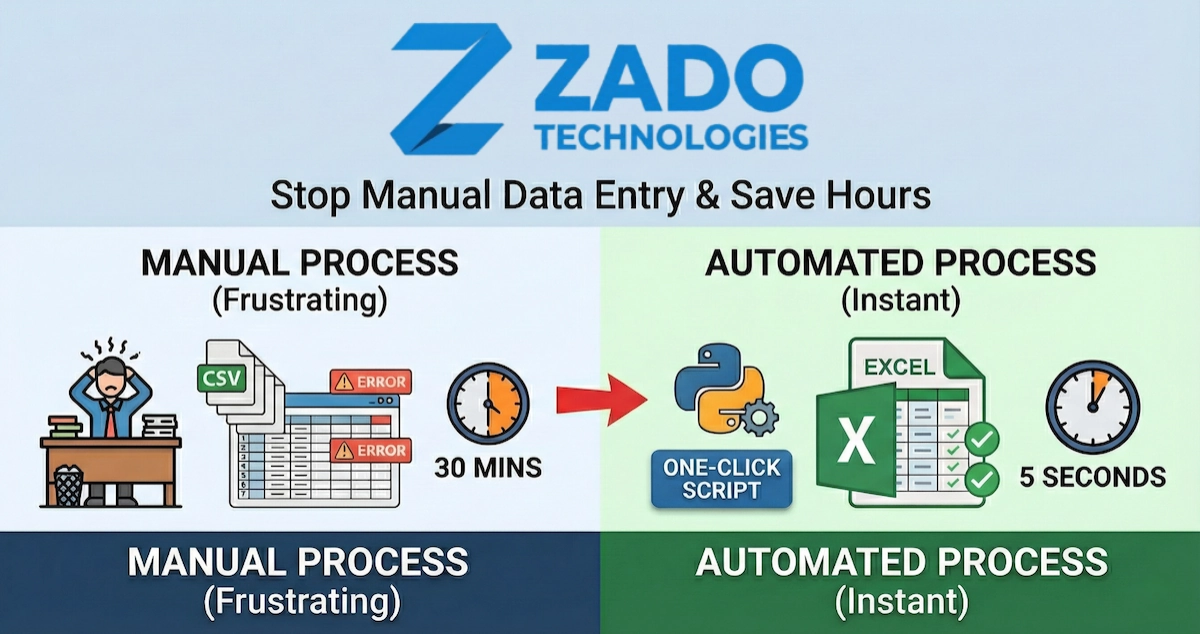
How to Automatically Convert CSV to Formatted Excel Files (Free Python Script)
The Problem: Why is opening a CSV in Excel so annoying?
If you work in HR, Accounting, or Logistics, you probably download CSV files every day. And you probably hate it.
When you double-click a CSV file to open it in Excel, three annoying things usually happen:
- Leading zeros disappear (Zip codes like
04101become4101). - Dates get corrupted (Excel tries to guess the format and often gets it wrong).
- Columns are squished (You have to manually resize every column to read the data).
If you do this once a month, it's fine. If you do this five times a day, you are wasting hours of your life on "Data Janitor" work.
The solution? Stop opening them manually. Use this simple Python script to convert them automatically.
The Free Solution: A Python Script to Convert CSV to Excel
Here is a free script that takes a raw CSV file and converts it into a clean, formatted Excel file (.xlsx). You will need Python and the pandas library installed.
What this script does:
- Reads your ugly CSV file.
- Writes it to a real Excel file.
- Bonus: It automatically adjusts column widths so you don't have to resize them manually.
import pandas as pd
from openpyxl import load_workbook
from openpyxl.utils import get_column_letter

def csv_to_excel(csv_file, excel_file):
    # 1. Read the CSV file
    # dtype=str keeps all your data as text so leading zeros don't disappear!
    df = pd.read_csv(csv_file, dtype=str)

    # 2. Write to Excel
    writer = pd.ExcelWriter(excel_file, engine='openpyxl')
    df.to_excel(writer, index=False, sheet_name='Sheet1')

    # 3. Auto-adjust column widths (The Magic Part)
    worksheet = writer.sheets['Sheet1']
    for i, col in enumerate(df.columns):
        # Find the max length of data in the column
        max_len = max(
            df[col].astype(str).map(len).max(),
            len(str(col))
        ) + 2
        # Set the column width
        col_letter = get_column_letter(i + 1)
        worksheet.column_dimensions[col_letter].width = max_len

    writer.close()
    print(f"Success! Converted {csv_file} to {excel_file}")

# Usage
csv_to_excel('my_data.csv', 'report_ready.xlsx')
The Limit: When a Script Isn't Enough
The script above is great for a single file. But real business workflows are rarely that simple.
In the real world (especially in HR and Payroll), the workflow usually looks more like this:
- Merge: You have 5 different CSV files from Homebase/ADP that need to be combined.
- Filter: You need to delete any rows where "Status" equals "Terminated."
- Calculate: You need to add a column for "Overtime Pay" based on complex shift rules.
- Report: You need to email this specific report to three different managers.
If you try to do that with a basic script, you'll spend more time debugging code than doing your job.
Stop Coding, Start Automating
You shouldn't have to learn Python just to get your payroll done.
I build Custom Desktop Tools that handle all of this with one click.
- No Code: You get a simple app icon on your desktop.
- Drag & Drop: Drag your CSVs in, get a finished report out.
- 100% Custom: It calculates your specific overtime rules, shift differentials, and formatting needs.
Case Study: See how I saved one HR Department 10 hours a week by automating their Homebase-to-Payroll workflow. Read the Case Study Here
Tired of Hiring Interns to Copy-Paste Data?
If you're a business owner spending thousands per year on manual data work, you need to see this:
Stop Hiring Interns to Copy-Paste Data →
Learn how custom desktop tools can automate your boring spreadsheet tasks forever. Cheaper than SaaS, faster than manual entry, and you own it forever.
Or ready to talk? Schedule a free automation audit to calculate exactly how much time and money you can save.
Written by
Zado Technologies
Zado Technologies provides data analytics, custom dashboards, and software development services for growing businesses.